Use secure storage for device enrollment
Overview
Enrolling a device in an information system means allowing a device and a system to provide services to each other while being ensured to be communicating with the right peer.
In particular this means making it impossible for a device to steal the identity of another, and for this tutorial we'll focus only on this part.
One way to implement that is to:
-
Provision devices with identifiers and private keys that are unique and protected by Welma's secure storage
-
Enroll each device in the system:
- the device sends its certificate request to the system's administrator
- the system's administrator verifies that this device is authorized
- the system's administrator delivers a certificate for the device
-
Finally, the device can be put in service. When connecting through TLS, the TLS handshake ensures the system that the device is the one it pretends to be.
What you'll learn:
- How to create a private key in Welma's Secure Storage
- How to create a CSR and an X509 certificate from this private key
- How to set up a TLS connection using this private key
What you'll need:
-
A workstation with a Linux operating system. It will play the role of the system.
-
One device where Welma's Secure Storage is supported (we'll use sm2s-imx8plus-mbep5 in this tutorial).
-
Your device and your workstation can communicate with each other via TCP/IP.
-
Your device is running a Welma development image, with SSH access and is reachable under the name
device-under-test.
Step 1: set up the system's certificates
Your workstation is going to play the role of the system. We need to create a few keys and certificates there.
We're creating a very simple certificate authority (CA) hierarchy like this:
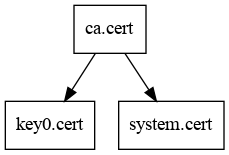
- key0.cert will be the certificate of the device.
- system.cert is the certificate of the system
- ca.cert is a self-signed certificate that is used to verify key0.cert and system.cert.
Create a CA key and related self-signed certificate (ca.cert):
$ openssl genrsa -out ca.key 2048
$ openssl req -new -x509 -subj "/CN=ca" -out ca.cert -key ca.key
Then create a key and certificate for the system's server (system.cert):
$ openssl genrsa -out system.key 2048
$ openssl req -new -batch -key system.key -subj "/CN=system" -out system.csr
$ openssl req -CA ca.cert -CAkey ca.key \
          -in system.csr \
          -out system.cert \
          -days 3650
Step 2: initialize secure storage on the device
First, check that there is no key provisioned in /var/lib/tee. If the directory is not empty, start by emptying it (this will wipe out all your keys, if any):
sm2s-imx8plus-mbep5:~# find /var/lib/tee -mindepth 1 -exec rm {} \;
sm2s-imx8plus-mbep5:~# reboot
Initialize the key store:
sm2s-imx8plus-mbep5:~# pkcs11-tool --module /usr/lib/libckteec.so.0 \
                                   --init-token --label token0 \
                                   --so-pin 00000000
Using slot 0 with a present token (0x0)
Token successfully initialized

sm2s-imx8plus-mbep5:~# pkcs11-tool --module /usr/lib/libckteec.so.0 \
                                   --init-pin --label token0 \
                                   --login --so-pin 00000000 --pin 0000
Using slot 0 with a present token (0x0)
User PIN successfully initialized
The 00000000 and 0000 are the Security Officer and User PINs. They are
generally used for being sure that removable smart cards cannot be used by
people who are not owners of the cards. In our context, there is no such
removable smart card (the smart card is emulated by optee-os).
Step 3: provision the key of the device
Create a RSA key pair labelled key0:
sm2s-imx8plus-mbep5:~# pkcs11-tool --module /usr/lib/libckteec.so.0 \
                                   --keypairgen --label key0 \
                                   --key-type rsa:2048 \
                                   --login --pin 0000
Using slot 0 with a present token (0x0)
Key pair generated:
Private Key Object; RSA
  label:      key0
  Usage:      decrypt, sign
  Access:     sensitive, always sensitive, never extractable, local
Public Key Object; RSA 2048 bits
  label:      key0
  Usage:      encrypt, verify
  Access:     local
This makes optee-os create a key (in the secure world) and this key gets encrypted and stored in /var/lib/tee:
sm2s-imx8plus-mbep5:~# ls -l /var/lib/tee
-rw-------    1 root     root         16384 Mar  9 09:41 0
-rw-------    1 root     root         16384 Mar  9 09:41 1
-rw-------    1 root     root         16384 Mar  9 09:41 2
-rw-------    1 root     root         16384 Mar  9 09:41 3
-rw-------    1 root     root         16384 Mar  9 09:41 4
-rw-------    1 root     root         16384 Mar  9 09:41 dirf.db
Choose a unique identifier for the device. It can be based on its serial number, its MAC address, a random value, etc. We'll take one fictive serial number:
Now, create a CSR (Certificate Signing Request):
sm2s-imx8plus-mbep5:~# PKCS11_MODULE_PATH=/usr/lib/libckteec.so.0 \
                       openssl req \
                               -new -batch \
                               -engine pkcs11 -keyform engine \
                               -key "pkcs11:object=key0;pin-value=0000" \
                               -subj "/CN=serial:$SERIAL/" \
                               -out /tmp/key0.csr
Step 4: enroll your device
This section is doing the actual enrollment of the device: issue a certificate and store this certificate in the device.
In a full-fledged system, this is the place where the system's administrator has to verify that key0.csr comes from a device that is allowed in the system. There are many ways to do that:
-
If the device and the system's administrator are in the same room at the same moment, and that key0.csr can't have been tampered with, then it can be assumed that key0.csr is trusted.
-
key0.csr can be signed by a trusted entity that was in the same room at the same moment.
- ...
But in our case, we simply assume that key0.csr can be trusted.
Create a certificate from the CSR of the device that we generated earlier:
$ ssh device-under-test cat /tmp/key0.csr |
      openssl req -CA ca.cert -CAkey ca.key \
              -in /dev/stdin \
              -out key0.cert \
              -days 3650
And send these to your device:
Step 5: have the device connect to the system through TLS
Now that your device is enrolled, it can connect to the system. This is what we're going to do now.
Start a TLS server on your workstation:
$ openssl s_server -accept 0.0.0.0:4433 \
         -key system.key -cert system.cert \
         -verifyCAfile ca.cert -Verify 1
From your device, connect to your workstation (your IP address may vary):
sm2s-imx8plus-mbep5:~# SERVERIP=192.168.1.35
sm2s-imx8plus-mbep5:~# PKCS11_MODULE_PATH=/usr/lib/libckteec.so.0 \
                       openssl s_client \
                               -connect $SERVERIP:4433 \
                               -engine pkcs11 -keyform engine \
                               -key 'pkcs11:object=key0;pin-value=0000' \
                               -CAfile /var/lib/ca.cert \
                               -cert /var/lib/key0.cert \
                               -verify_return_error
And finally on your workstation you can see the certificate of the device:
...
Client certificate
-----BEGIN CERTIFICATE-----
MIIDDzCCAfegAwIBAgIULmJkhUqM28mlsEy+eUrqaSakgJswDQYJKoZIhvcNAQEL
BQAwDTELMAkGA1UEAwwCY2EwHhcNMjYwMzEyMTMwMDU4WhcNMzYwMzA5MTMwMDU4
WjAhMR8wHQYDVQQDDBZzZXJpYWw6MjAyNjAwMDAwMDAwMDAxMIIBIjANBgkqhkiG
9w0BAQEFAAOCAQ8AMIIBCgKCAQEAp0syMfxOKdh9BMcKyXagzsG14VpLa6JLukPV
1kkqVeRc0tus5rfGVFfSNbkXyRbV69YametfTsq0XdAUEmC4s3i45KUUbQD7z5vY
WpvsxkjFXxhjYY8RV7oesXOdDAcVdipPaU0tw+HhQsGJpSaHuzjNe2ENasNDz7AJ
kEk9ru4JH/CMnjk7vUQagM4RBwsE6zdbllUqHRN3in1Au5GscXJJAnNeMdlXhfa1
2EaaTwmnO0XqEtPJDmonILqqwaGiUFdAgQrvY6kaAoex0pqkaOwpbdeXjHOcfQqU
Fk6wVRWC8UiTF447MOg3OYHbIX/35Y3vDuGZpZuSfsD+kX9/+QIDAQABo1MwUTAd
BgNVHQ4EFgQUdNndaSPtSmKBhiOFM3XQHh1de6gwHwYDVR0jBBgwFoAUHqD386px
oqTcV+iWKUbmmCXbTcwwDwYDVR0TAQH/BAUwAwEB/zANBgkqhkiG9w0BAQsFAAOC
AQEAlMgP3Q5mWy2eGkk4Bwfra9G6fMdhZ0wcQWCmbECpFCEnt3LJMuWXjiyaQFuG
4iSuUwYzsTbU8PbN+tQI2+VzD34mRy/KLIr/4+3lfCjO8gVRYflzIrXsCmIDbsfA
yDu9yMttQOeIAFf0qoUAVBDSBHCCR66PkhyquhO1myIhG0oWpMcBCO3sC9eU1jzf
239pAkjnBDgw8UyCpftzw3glij9K1Ei+XvXmgFq8xadwcpecp25EtMWHk9QK/a00
CAYEz02+2Paf987hyQEm6QsK+ITlA+zNbUaviW/FdrPJGOhny7l0YTTQsjHjMR3z
uFFiBKJWkUyGqaw/9+VN4FJ5HQ==
-----END CERTIFICATE-----
subject=CN = serial:202600000000001
issuer=CN = ca
...
To look into the certificate, you may use:
$ cat << EOF | openssl x509 -text -noout
-----BEGIN CERTIFICATE-----
MIIDDzCCAfegAwIBAgIULmJkhUqM28mlsEy+eUrqaSakgJswDQYJKoZIhvcNAQEL
BQAwDTELMAkGA1UEAwwCY2EwHhcNMjYwMzEyMTMwMDU4WhcNMzYwMzA5MTMwMDU4
WjAhMR8wHQYDVQQDDBZzZXJpYWw6MjAyNjAwMDAwMDAwMDAxMIIBIjANBgkqhkiG
9w0BAQEFAAOCAQ8AMIIBCgKCAQEAp0syMfxOKdh9BMcKyXagzsG14VpLa6JLukPV
1kkqVeRc0tus5rfGVFfSNbkXyRbV69YametfTsq0XdAUEmC4s3i45KUUbQD7z5vY
WpvsxkjFXxhjYY8RV7oesXOdDAcVdipPaU0tw+HhQsGJpSaHuzjNe2ENasNDz7AJ
kEk9ru4JH/CMnjk7vUQagM4RBwsE6zdbllUqHRN3in1Au5GscXJJAnNeMdlXhfa1
2EaaTwmnO0XqEtPJDmonILqqwaGiUFdAgQrvY6kaAoex0pqkaOwpbdeXjHOcfQqU
Fk6wVRWC8UiTF447MOg3OYHbIX/35Y3vDuGZpZuSfsD+kX9/+QIDAQABo1MwUTAd
BgNVHQ4EFgQUdNndaSPtSmKBhiOFM3XQHh1de6gwHwYDVR0jBBgwFoAUHqD386px
oqTcV+iWKUbmmCXbTcwwDwYDVR0TAQH/BAUwAwEB/zANBgkqhkiG9w0BAQsFAAOC
AQEAlMgP3Q5mWy2eGkk4Bwfra9G6fMdhZ0wcQWCmbECpFCEnt3LJMuWXjiyaQFuG
4iSuUwYzsTbU8PbN+tQI2+VzD34mRy/KLIr/4+3lfCjO8gVRYflzIrXsCmIDbsfA
yDu9yMttQOeIAFf0qoUAVBDSBHCCR66PkhyquhO1myIhG0oWpMcBCO3sC9eU1jzf
239pAkjnBDgw8UyCpftzw3glij9K1Ei+XvXmgFq8xadwcpecp25EtMWHk9QK/a00
CAYEz02+2Paf987hyQEm6QsK+ITlA+zNbUaviW/FdrPJGOhny7l0YTTQsjHjMR3z
uFFiBKJWkUyGqaw/9+VN4FJ5HQ==
-----END CERTIFICATE-----
EOF
Certificate:
    Data:
        Version: 3 (0x2)
        Serial Number:
            2e:62:64:85:4a:8c:db:c9:a5:b0:4c:be:79:4a:ea:69:26:a4:80:9b
        Signature Algorithm: sha256WithRSAEncryption
        Issuer: CN=ca
        Validity
            Not Before: Mar 12 13:00:58 2026 GMT
            Not After : Mar  9 13:00:58 2036 GMT
        Subject: CN=serial:202600000000001
        Subject Public Key Info:
            Public Key Algorithm: rsaEncryption
                Public-Key: (2048 bit)
                Modulus:
                    00:a7:4b:32:31:fc:4e:29:d8:7d:04:c7:0a:c9:76:
                    a0:ce:c1:b5:e1:5a:4b:6b:a2:4b:ba:43:d5:d6:49:
                    2a:55:e4:5c:d2:db:ac:e6:b7:c6:54:57:d2:35:b9:
                    17:c9:16:d5:eb:d6:1a:99:eb:5f:4e:ca:b4:5d:d0:
                    14:12:60:b8:b3:78:b8:e4:a5:14:6d:00:fb:cf:9b:
                    d8:5a:9b:ec:c6:48:c5:5f:18:63:61:8f:11:57:ba:
                    1e:b1:73:9d:0c:07:15:76:2a:4f:69:4d:2d:c3:e1:
                    e1:42:c1:89:a5:26:87:bb:38:cd:7b:61:0d:6a:c3:
                    43:cf:b0:09:90:49:3d:ae:ee:09:1f:f0:8c:9e:39:
                    3b:bd:44:1a:80:ce:11:07:0b:04:eb:37:5b:96:55:
                    2a:1d:13:77:8a:7d:40:bb:91:ac:71:72:49:02:73:
                    5e:31:d9:57:85:f6:b5:d8:46:9a:4f:09:a7:3b:45:
                    ea:12:d3:c9:0e:6a:27:20:ba:aa:c1:a1:a2:50:57:
                    40:81:0a:ef:63:a9:1a:02:87:b1:d2:9a:a4:68:ec:
                    29:6d:d7:97:8c:73:9c:7d:0a:94:16:4e:b0:55:15:
                    82:f1:48:93:17:8e:3b:30:e8:37:39:81:db:21:7f:
                    f7:e5:8d:ef:0e:e1:99:a5:9b:92:7e:c0:fe:91:7f:
                    7f:f9
                Exponent: 65537 (0x10001)
        X509v3 extensions:
            X509v3 Subject Key Identifier:
                74:D9:DD:69:23:ED:4A:62:81:86:23:85:33:75:D0:1E:1D:5D:7B:A8
            X509v3 Authority Key Identifier:
                1E:A0:F7:F3:AA:71:A2:A4:DC:57:E8:96:29:46:E6:98:25:DB:4D:CC
            X509v3 Basic Constraints: critical
                CA:TRUE
    Signature Algorithm: sha256WithRSAEncryption
    Signature Value:
        94:c8:0f:dd:0e:66:5b:2d:9e:1a:49:38:07:07:eb:6b:d1:ba:
        7c:c7:61:67:4c:1c:41:60:a6:6c:40:a9:14:21:27:b7:72:c9:
        32:e5:97:8e:2c:9a:40:5b:86:e2:24:ae:53:06:33:b1:36:d4:
        f0:f6:cd:fa:d4:08:db:e5:73:0f:7e:26:47:2f:ca:2c:8a:ff:
        e3:ed:e5:7c:28:ce:f2:05:51:61:f9:73:22:b5:ec:0a:62:03:
        6e:c7:c0:c8:3b:bd:c8:cb:6d:40:e7:88:00:57:f4:aa:85:00:
        54:10:d2:04:70:82:47:ae:8f:92:1c:aa:ba:13:b5:9b:22:21:
        1b:4a:16:a4:c7:01:08:ed:ec:0b:d7:94:d6:3c:df:db:7f:69:
        02:48:e7:04:38:30:f1:4c:82:a5:fb:73:c3:78:25:8a:3f:4a:
        d4:48:be:5e:f5:e6:80:5a:bc:c5:a7:70:72:97:9c:a7:6e:44:
        b4:c5:87:93:d4:0a:fd:ad:34:08:06:04:cf:4d:be:d8:f6:9f:
        f7:ce:e1:c9:01:26:e9:0b:0a:f8:84:e5:03:ec:cd:6d:46:af:
        89:6f:c5:76:b3:c9:18:e8:67:cb:b9:74:61:34:d0:b2:31:e3:
        31:1d:f3:b8:51:62:04:a2:56:91:4c:86:a9:ac:3f:f7:e5:4d:
        e0:52:79:1d
Summary
You learned how to create a key in Welma's secure storage and how to use it for device enrollment and operation, with other keys and certificates creation. You also learned how to reset secure storage to empty.
You'll find more design details and use cases in the page Secure storage.