Software Update Overview
Welma integrates a solution for updating software partitions during the operational life of the device.
It features:
- updating any part of the software system, but it is focused on progams (as opposed to data)
- granularity at partition or block level
- dependability when updating A/B partitions, with rollback capability
- compatible with secure boot
- authentication of packages before installation (aka "secure update")
- clearance given by a third party program
Runtime architecture
Partitions can be updated in A/B mode or in Single mode, and a reboot is needed to activate them.
A/B mode
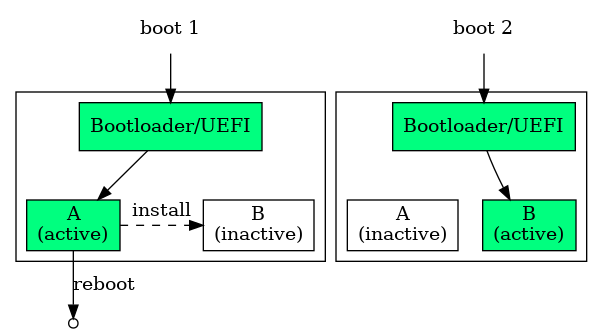
This is a reliable solution that is resilient to uncontrolled shutdown or reset of the machine, and that provides rollback.
In this mode, the system has 2 copies (A and B) of a partition, one being active (ie: its files are being used by the running system), and the other being inactive. The system can only update the inactive partition, which will become active after a reboot.
This mode is typically used for the kernel, rootfs, applicative partitions, ...
Single mode
This enables the updating of partitions that do not have a second copy, and that are not used at the time of the installation of a new version.
In this mode, the system is not resilient to uncontrolled shutdown or reset, and rollback is not available.
This mode is typically used for the bootloader.
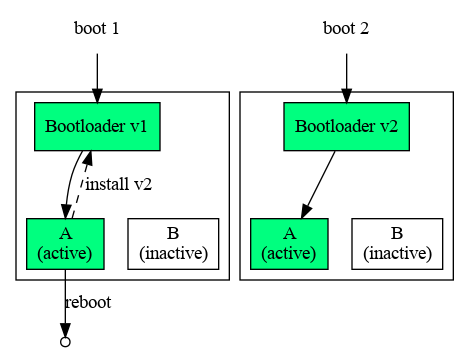
Different partitions of a system can have different update modes.
Yocto configuration
Welma currently supports SWUpdate and Mender as underlying software update mechanisms. Mender can be used either in standalone or connected mode.
For details about their architecture, artifact formats and configuration, see Software Update Backends: SWUpdate and Mender.
In order to activate the software update feature, you need:
- In your image recipe:
inherit welma-image- select the underlying mechanism:
WELMA_UPDATE = "swupdate"(this is the default)- or
WELMA_UPDATE = "mender" - or
WELMA_UPDATE = "mender-connected"
- In your project Yocto layer, in your
.partfile, set:update=ab- or
update=single(see Partitioning)
The generated output files will be:
- A SD card image with the whole partitioning (with extensions
.wicor.wic.gz) suitable for the very first installation of the device. - Package files (with extensions
.swuor.mender) for remote updates.
Secure update
Welma can authenticate software update packages before installation by verifying their cryptographic signature.
Secure Update can be configured with:
Secure Update is enabled by default and can use either SWK1 or SWK2 as the
authentication key.
The authentication keys are configured using WELMA_KEY_SWK1_PUB / WELMA_KEY_SWK1_PRIV
or WELMA_KEY_SWK2_PUB / WELMA_KEY_SWK2_PRIV variables.
If both SWK1 and SWK2 are configured, SWK2 is used for package authentication.
For more information about package authentication, key provisioning, production keys and package signing, see Welma Secure Update.
Package bundle
By default in Welma, Yocto will build one package for each module
that is subject to update. These packages can be packed into one single
super-package, called a bundle, for situations where one wants to sign and
deploy a single file. What goes in this bundle is controlled by the
variable WELMA_UPDATE_BUNDLE. Eg:
Version Control
Welma includes a version control system that automatically embeds version information and compatibility rules into software packages. This ensures only compatible module combinations are installed.
Version tagging is enabled by default for all A/B and single-mode update
partitions. Dependencies between modules can be specified in the .part file
using the deps keyword.
For detailed information on configuring versions and dependencies, and for
querying version information using the versionctl tool, see:
Version Control and Compatibility Checking
Detailed internal architecture
This paragraph describes how things are internally organized.
This is how the system handles A/B updates:
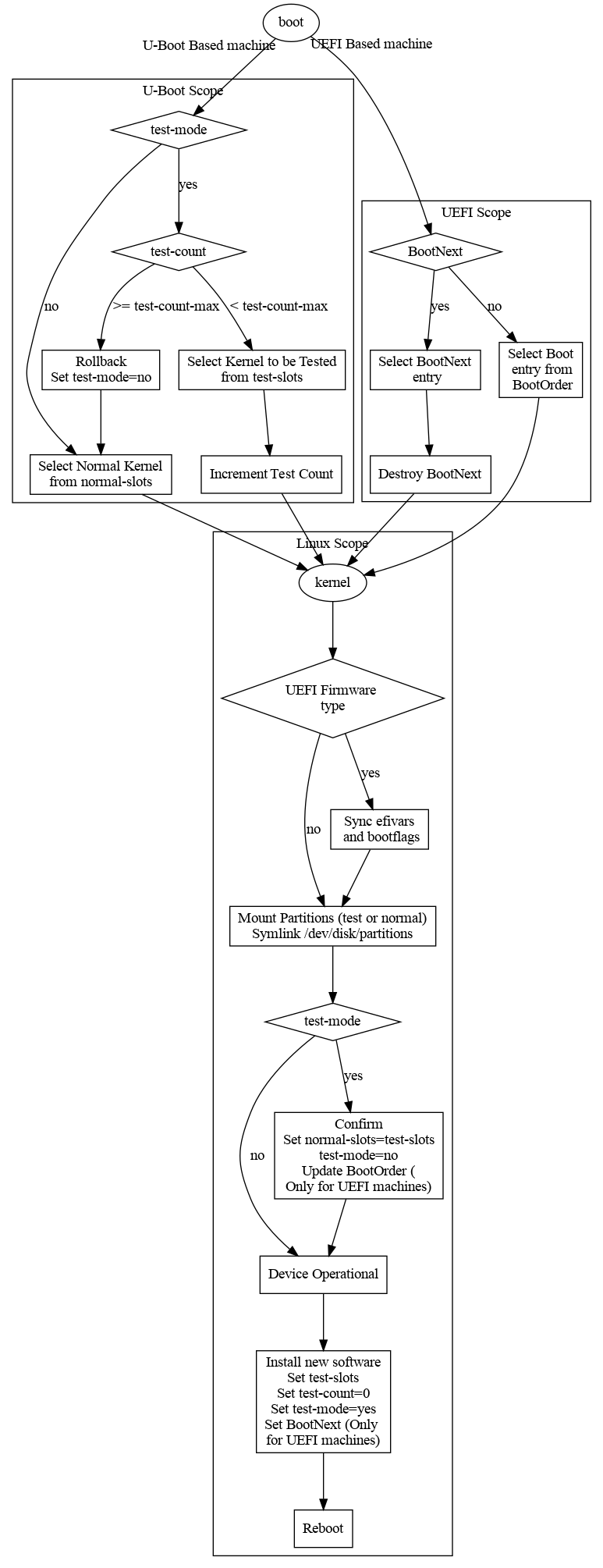
The underlying mechanism for installing software updates is either:
Software Update Deployment
Detailed software update configuration and deployment instructions are provided in Software Update Configuration and Usage. This section provides an overview of how the available tools can be used to perform a Welma software update.
To deploy a new software version on your device:
-
Have your embedded application retrieve the packages to be installed (via network, USB, etc.).
-
Have your application request the system to make the installation, via the command
updatectl installor via the D-Bus API. -
Have your application reboot the device
-
After reboot, the device should be running the new version.
- If you have updated at least one partition in A/B mode, have your
application check that the device is operational and confirm the update
via the
updatectl confirmAPI or via the D-Bus API. - If only single mode partitions were updated, there is nothing to confirm.
- If you have updated at least one partition in A/B mode, have your
application check that the device is operational and confirm the update
via the
When things go wrong when updating A/B partitions:
-
If the application does not confirm the installation, then:
- other software updates will be rejected;
- at next reboot the device will rollback to the initial system;
- after 2 minutes a watchdog will force rebooting (see Runtime Confguration)..
-
If the installation is interrupted (eg: by a power outage), then the initial state remains unchanged and the device remains operational.
-
If the new version installed has defects and does not boot, the HW watchdog will make the device reboot and come back to the initial state.
-
If the application does not confirm within the allocated time, then the device reboots, and comes back to the initial state.
How to determine if the device is operational
This paragraph is only advisory.
Before validating that a new installed software version is operational a few project-specific verifications shall be performed by the application.
The purpose is to prevent:
- The device from being locked out of remote control.
- Retrieving physically the device and recommissioning.
Example of what could be verified:
- Network is reachable (this can verify network parameters, URL, TLS certificates,...).
- Active modules running on new versions (using version control)
- Data stores in SYSRW are correctly loaded (this can verify incompatible files formats, databases).